

The widget is one script, init.js, configured by a window.hcOptions object on your page. This page explains the snippet your dashboard gives you line by line, what happens when it runs, and every option you can set.
Plans: All plans. Signing readers in with jwt needs single sign-on, part of the Catalyst plan.
Get the snippet
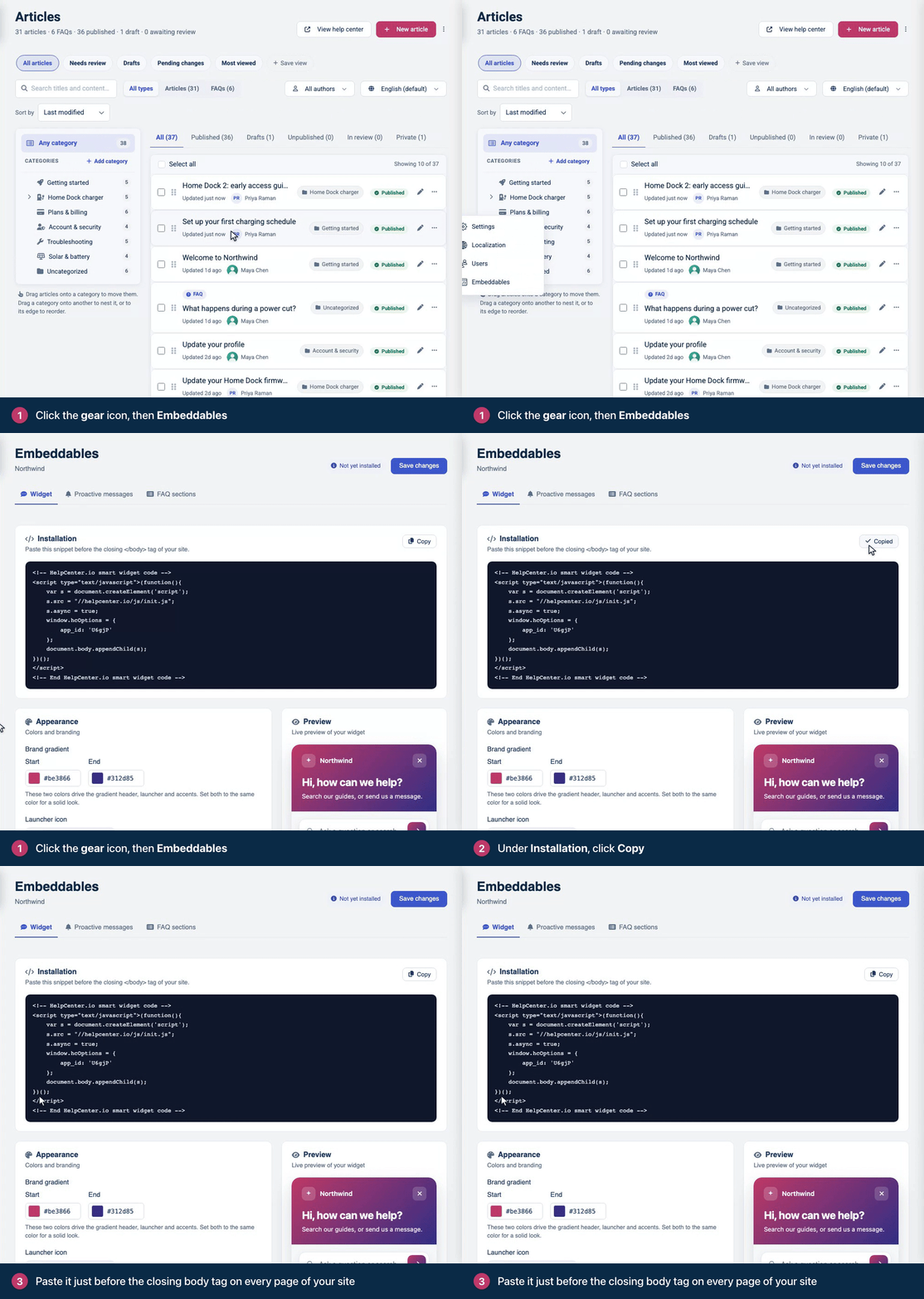
Copy it from Embeddables → Widget → Installation in your dashboard, and add your website to Embedding origins. The steps are in Add the widget to your website.
The snippet
This is the snippet, with your widget ID in place of YOUR_WIDGET_ID:
<!-- HelpCenter.io smart widget code -->
<script type="text/javascript">(function(){
    var s = document.createElement('script');
    s.src = "//helpcenter.io/js/init.js";
    s.async = true;
    window.hcOptions = {
        app_id: 'YOUR_WIDGET_ID'
    };
    document.body.appendChild(s);
})();
</script>
<!-- End HelpCenter.io smart widget code -->
What each line does:
Line | What it does |
|---|---|
| Loads the widget's loader. The address is the same for every help center, including help centers on a custom domain. |
| Loads it without holding up your page. |
| Your options. |
| Adds the loader to the page body. The body must exist when the snippet runs, so put the snippet right before |
Without an inline script
The two parts can also be separate: set window.hcOptions in your own script or bundle, then load init.js with a script tag. This form works with a Content Security Policy that doesn't allow inline scripts (see Content Security Policy and allowed origins).
<script>
  window.hcOptions = { app_id: 'YOUR_WIDGET_ID' };
</script>
<script src="https://helpcenter.io/js/init.js" async></script>
Set window.hcOptions before init.js runs, and keep both right before </body>: init.js picks up the article links and FAQ sections that are on the page when it runs.
What happens when the page loads
init.jsreadswindow.hcOptions, once. Changing the object afterwards has no effect.It creates
window.hcWidgetstraight away, unlesswidgetEnabledisfalse. The methods exist from this moment, but the widget doesn't take commands yet.It binds the links with a
data-hc-articleattribute that are on the page now, and loads the FAQ sections that are on the page now.It fetches the widget's configuration from
https://embed.helpcenter.io, then adds the widget's frame to the bottom of your page.The widget checks that your page's host is in Embedding origins. If it is, the widget renders and becomes ready:
hcWidget.isReady()returnstrue, andonWidgetReadyand everyhcWidget.onReady()callback run.
Calls to show, hide, setCategory, setHref and setHrefAndOpen made before step 5 are lost. Only trigger and onReady wait for the widget. On a page whose host isn't in Embedding origins, step 5 never happens. To run code as soon as the widget takes commands, put it in onWidgetReady; see Widget JavaScript API.
Options
Option | Type | Default | What it does |
|---|---|---|---|
| string | Required | Your widget ID. |
| string | Bottom right |
|
| string | Your default language | One of your help center's languages, such as |
| number | None | A category ID. The home screen lists up to seven published articles from that category and its subcategories, instead of your most viewed articles. A category visitors can't see gives an empty list; an ID that doesn't exist gives the most viewed articles. |
| string | None | An article path, |
| boolean |
|
|
| boolean |
|
|
| string | None | The first sign-in token for a private help center. See Sign readers into the widget with a JWT. |
| function | None | Returns a new sign-in token, as a string or a Promise of one, each time the widget needs one. Use it together with |
| function | None | Called, with no arguments, when a visitor asks to contact you, instead of the widget's own contact form. See Handle contact requests yourself. |
| function | None | Called once, with no arguments, when the widget is ready for commands. |
An example with several options:
window.hcOptions = {
  app_id: 'YOUR_WIDGET_ID',
  position: 'bottom-left',
  lang: 'es',
  onWidgetReady: function () {
    console.log('The HelpCenter.io widget is ready');
  }
};
A few things come from your dashboard, not from the snippet: the widget's colors, launcher icon, greeting and texts (see Match the widget to your brand), and its proactive messages (see Invite visitors with proactive messages).
To suggest related articles, which it lists under Can this help?, the widget sends the visible text of your page to HelpCenter.io when it loads. Setting category or href turns this off.
Single-page apps
The widget works in single-page apps. Keep these in mind:
Load it once. Put the snippet in your app shell, not in a component that renders on each route. Every run of the snippet adds another widget.
It stays through route changes. The widget and its state survive client-side navigation. Because
hcOptionsis read once, change what the widget shows with its methods, for examplehcWidget.setCategory()on each route. See Open the widget from your own UI.Links you render later aren't bound.
data-hc-articlelinks added afterinit.jsran behave as ordinary links. The same page shows a click handler that covers them.Page suggestions are computed once, when the widget loads.
Proactive messages follow the route. While your widget has active proactive messages, each change of the page's address counts as a new page view for their rules.
Use
addEventListenerfor resize handlers.init.jsassignswindow.onresize, which replaces a handler you assigned there, and the other way round.Reload to start over. The widget has no method to remove or reset it. When a user signs out, or another user signs in, reload the page.
One widget per page
Add the snippet once per page. A page has one window.hcOptions and one window.hcWidget: a second copy of the snippet adds a second widget, and the two respond to each other's commands. To show another help center's widget, use a different page.
FAQ sections
The same script renders FAQ sections: a <div class="hc-faq-section" data-id="YOUR_SECTION_KEY" data-type="custom"></div> (or data-type="full") anywhere on a page that has the widget snippet. init.js loads the sections that are on the page when it runs. Set widgetEnabled: false to show sections without the floating widget, and lang to show them in another language, with the FAQs translated into it. FAQ sections are for public content. You create sections, and copy their markup, under Embeddables → FAQ sections; see Embed FAQ sections on your website.
Troubleshooting
The launcher doesn't appear, and the console says "Parent domain is not in the allowed list." Your page's host isn't in Embedding origins. Add the host the message names; see Choose which websites can show the widget.
Nothing loads, and window.hcOptions is undefined in the console. The snippet didn't run: your tag manager hasn't published it, or your Content Security Policy blocked it.
Nothing loads, and the console shows a TypeError, such as "Cannot read properties of null (reading 'appendChild')" in Chrome. The snippet is in <head>, where the page body doesn't exist yet. Move it right before </body>.
The frame loads, but the widget never appears. Check app_id. With an ID that doesn't exist, the browser's Network tab shows the request for https://embed.helpcenter.io/widget/<id> answering 410 Gone:
{
  "status": "error",
  "message": "Widget not found.",
  "code": "WIDGET_NOT_FOUND"
}
The widget works in Chrome and Safari but not in Firefox, and Firefox's console says "Parent domain not found. Cannot render the widget." Your page sends Referrer-Policy: no-referrer or same-origin. See Content Security Policy and allowed origins.
More causes, from the account owner's side, are in The widget doesn't show up.