

Connect Claude, ChatGPT or an agent you build to your help center through the HelpCenter.io MCP server. This guide covers each client, what you approve when you sign in, how to work with several help centers, and how to take access back.
Before you start
Plan: the help center must be on the Growth or Catalyst plan, or a free trial of one. On other plans, the AI agents card in Settings says Not included in your current plan. See plans and pricing.
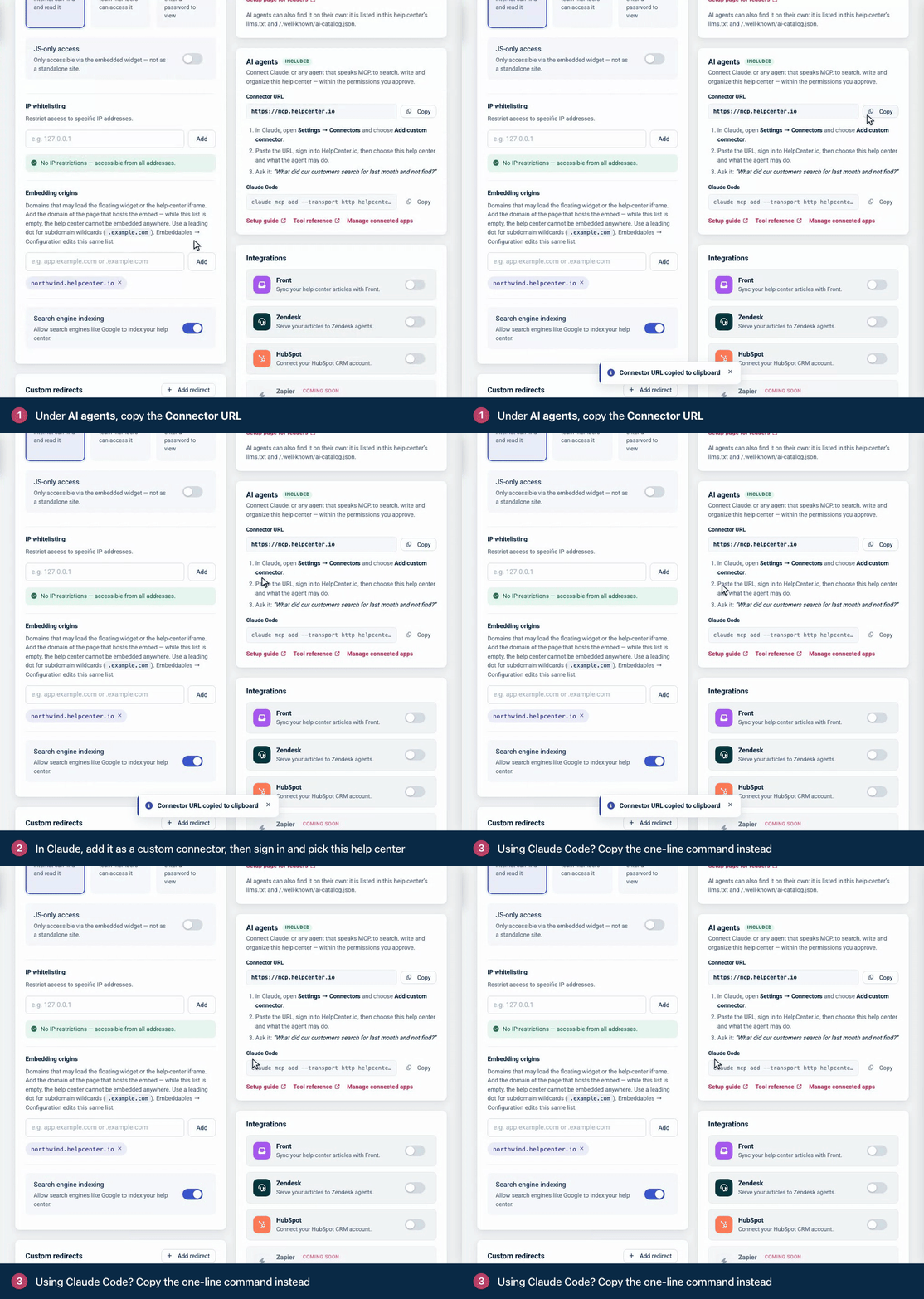
Server URL: everyone connects to
https://mcp.helpcenter.io. In your dashboard it is in Settings → AI agents, under Connector URL, with a Copy button.Signing in: with Claude and ChatGPT you sign in with your HelpCenter.io account, and there is no key to copy. You can connect the help centers that belong to your account.
Your own agent: needs an API key from the help center it should work on. See Create an API key.
Connect Claude on the web or Claude Desktop
In Claude, open Settings → Connectors and choose Add custom connector.
Paste
https://mcp.helpcenter.ioas the URL and add the connector.Claude opens the HelpCenter.io sign-in. Sign in, check the permissions on the Authorize access screen, tick your help centers if you have more than one, and click Allow.
Ask Claude something that needs your help center, for example "Which of our articles explain refunds, and what do they leave out?"
Connect Claude Code
Run this command. The AI agents card shows it too, under Claude Code, with a Copy button.
claude mcp add --transport http helpcenter https://mcp.helpcenter.ioYou sign in to HelpCenter.io the same way as in Claude, on the same Authorize access screen.
Connect ChatGPT
ChatGPT connects through its developer mode, in ChatGPT on the web, and signs in with OAuth. It cannot send an API key.
Turn on developer mode in ChatGPT's settings. On a workspace, an admin turns it on first.
Create a developer-mode app with
https://mcp.helpcenter.ioas its MCP server URL, and choose OAuth for authentication.ChatGPT opens the HelpCenter.io sign-in. Sign in, check the permissions, tick your help centers and click Allow.
Start a new chat that uses the app, and ask your question.
OpenAI decides which ChatGPT plans can add an app this way and whether it may change content. Its guide to developer mode has the current rules.
Connect another MCP client
A client that supports remote MCP servers over Streamable HTTP with OAuth sign-in can use the same URL, provided it follows the MCP authorization flow as HelpCenter.io implements it:
Discovery. A request without a credential gets
401 Unauthorizedand aWWW-Authenticateheader naminghttps://mcp.helpcenter.io/.well-known/oauth-protected-resource. That document names the authorization server,https://helpcenter.io, whose metadata is athttps://helpcenter.io/.well-known/oauth-authorization-server.Registration. Dynamic client registration at
https://helpcenter.io/oauth/register. Redirect URIs must behttps, orhttpon a loopback address (localhost,127.0.0.1,[::1]). Any other scheme is refused withinvalid_redirect_uri.Authorization code with PKCE, method
S256.The
resourceparameter, set tohttps://mcp.helpcenter.io. Without it, the token is not issued for the MCP server, which refuses it with401.Scopes. The challenge suggests
content.read content.write. Ask foranalytics.read,notes.readandnotes.writeas well if the agent should use the analytics and team notes tools.
The endpoints, token lifetimes and errors are in OAuth 2.1 for apps and AI clients.
Connect your own agent with an API key
An agent you run yourself skips the sign-in and sends an API key with every request. The key decides everything: it works on the help center it was created in, with its scope (Read only or Read & write), and reaches team notes only if it was created with team notes access.
Create a key in Settings → API keys of the help center the agent should work on. See Create an API key.
Store it on the server where the agent runs, for example as
HELPCENTER_API_KEY. Never put it in browser code.Send it as
Authorization: Bearer <key>, withContent-Type: application/jsonand anAcceptheader that lists bothapplication/jsonandtext/event-stream. TheX-HelpCenter-Api-Keyandapikeyheaders also carry a key.
This request calls one tool:
curl -s https://mcp.helpcenter.io/ \
  -H "Authorization: Bearer $HELPCENTER_API_KEY" \
  -H "Content-Type: application/json" \
  -H "Accept: application/json, text/event-stream" \
  -d '{"jsonrpc":"2.0","id":1,"method":"tools/call",
       "params":{"name":"helpcenter_list_sites","arguments":{}}}'
The result has the text the model reads in content, and the API's response in structuredContent:
{
  "result": {
    "content": [
      {
        "type": "text",
        "text": "# Help centers (1)\n\n- Acme (id: 381) | help.example.com\n\nSelect one by reconnecting to the MCP server with `?site=<id>` appended to its URL."
      }
    ],
    "structuredContent": {
      "status": "success",
      "sites": [
        {
          "id": 381,
          "uuid": "3f9a8112-8fb7-414f-829a-bde2136e0249",
          "name": "Acme",
          "subdomain": "acme",
          "domain": "help.example.com",
          "url": "https://help.example.com",
          "default_language": "en",
          "visibility": "public",
          "publicly_accessible": true,
          "languages": ["en"],
          "created_at": "2026-09-30 08:03:14"
        }
      ],
      "meta": { "items_count": 1 }
    }
  },
  "jsonrpc": "2.0",
  "id": 1
}
Things to know when you write your own client:
Each
POSTstands alone. The server keeps no session, so you can calltools/callwithoutinitializefirst. MCP client libraries sendinitializeanyway, which works too.A missing
text/event-streaminAcceptgets406 Not Acceptable, and a body withoutContent-Type: application/jsongets415 Unsupported Media Type.A failed tool call still answers
200 OK. Look for"isError": truein the result; its text says what went wrong and what to do.A wrong key is not refused when you connect:
initializeandtools/listanswer with any key. The first tool call fails withError: Authentication failed. The HelpCenter.io API key is missing or invalid.The plan applies to keys too. A key that works against the REST API gets the plan refusal through the MCP server when its help center is not on Growth or Catalyst.
What you approve on the consent screen
When an app signs in, HelpCenter.io shows Authorize access: the app's name, then Permissions, the list of permissions the app asks for. You approve them together or click Deny: you cannot drop one permission and keep the rest. What you choose is the help centers.
One help center: the screen names it under Help center.
Several: tick them under Help centers to share. Select all ticks every one you can share. Nothing is ticked the first time, and when you approve an app again, the help centers it already reaches are ticked.
Help centers on other plans are shown locked, with their plan and an Upgrade link. When none of your help centers is on Growth or Catalyst, the screen says Your plan doesn't include the MCP server instead, and nothing is shared.
These are the permissions an app can ask for, with the words the screen uses:
Permission | On the screen | What the agent can do with it |
|---|---|---|
| Read your help-center categories and articles. | Search and read articles, categories, reader comments, staged changes and versions, and list your help centers. |
| Create and update your help-center articles. | Create and change articles and categories, delete categories, stage, publish and discard changes, restore versions, and approve, unpublish and answer comments. |
| Read your help-center analytics reports. | Use the three analytics tools. |
| Read the private notes your team leaves on drafts. Readers never see these. | Read team notes. |
| Reply to and resolve the private notes your team leaves on drafts. | Reply to and resolve team notes. |
| Register webhooks that notify it when your content changes. | Nothing through the MCP server: no tool uses it. |
| Stay connected, so you are not asked to sign in again each time its short-lived access expires. | Nothing more. HelpCenter.io gives every app a refresh token, with or without this permission. |
Apps may also ask for openid, profile and email, which let them confirm who you are and read your name and email address.
If you already approved the same permissions for the same app, HelpCenter.io skips the screen and connects at once. The footer of the screen reminds you that you can change or revoke access in Account › Connected Apps.
Work with more than one help center
If you approve one help center, the agent works there. If you approve several, each connection has to name one, or the agent is refused with site_required:
Ask the agent to list your help centers. It uses the
helpcenter_list_sitestool, which shows each one with its id.Add the connector again with the id at the end of the URL, for example
https://mcp.helpcenter.io/?site=1234.
Add one connector per help center you want the agent to use. The agent cannot switch help centers during a conversation: the URL you connected with decides where its changes go. API keys ignore ?site=, because a key belongs to one help center.
Add a permission later
The 401 challenge that starts every sign-in names only content.read and content.write. A client that asks for exactly those gets a connection without the analytics and team notes permissions, and those tools are then refused before they run: the server answers 403 Forbidden with WWW-Authenticate: Bearer error="insufficient_scope", scope="analytics.read" (or the permission the tool needs), and the agent reads:
This tool needs the 'analytics.read' permission and the current authorization does not include it. Re-authorize the HelpCenter.io connector and approve that permission — retrying without it will fail identically.To fix it, authorize the connector again so that the client asks for the missing permission, then click Allow. HelpCenter.io adds it to what it remembers for the app. If you build the client, include the permission in the scope of the authorization request.
Manage or revoke access
Click Manage connected apps in the AI agents card, or open
https://helpcenter.io/app/account/connected-apps.To change what an app reaches, tick or untick help centers under Help centers it can reach and click Save help centers. The change applies to the app's next request. To leave it none, disconnect it instead.
To remove an app, click Disconnect and confirm. Its tokens stop working at once, and the agent is told to reconnect.
Each app shows the permissions you approved, which you cannot change on this page. The account owner sees and manages every member's connections, and each member sees their own. For an agent that uses an API key, delete the key in Settings → API keys.
Troubleshooting
The client reports 401 Unauthorized with "Missing HelpCenter.io credentials". That is the challenge that starts the sign-in. A client that supports OAuth for remote MCP servers continues to the HelpCenter.io sign-in. An agent of your own must send an API key.
"Error: Authentication failed. The HelpCenter.io API key is missing or invalid." The key is wrong or was deleted. The message's advice to set HELPCENTER_IO_API_KEY does not apply to https://mcp.helpcenter.io: check the key you send in the Authorization header.
"Error: HelpCenter.io no longer accepts this OAuth authorization". The app was disconnected or its token expired. Reconnect it to sign in again.
"The HelpCenter.io MCP server is available on the Growth and Catalyst plans." The help center's plan does not include the MCP server, for example after a plan change. Reconnecting does not help. It works again on the next request once the help center is on Growth or Catalyst.
The sign-in says "Your plan doesn't include the MCP server". None of your help centers is on Growth or Catalyst. Move one to either plan, then connect again.
A help center you work on is not listed on the consent screen. It belongs to another HelpCenter.io account. Ask its owner to connect it, or use an API key created in that help center.
"Error: This connection has not said which help center it is for". You approved several help centers. Add ?site=<id> to the connector URL, as in Work with more than one help center, above.
"Error: This authorization does not cover the help center the connection selected." The ?site= id is not one of the help centers you approved. Fix the id, or approve the app again with that help center ticked.
"This tool needs the 'analytics.read' permission" (or notes.read, notes.write, content.write). See Add a permission later, above.
"Error: Permission denied. This action requires the notes.read scope." With an API key, the key was created without team notes access. Create a key with Allow access to editorial notes turned on. The advice in the message about a write-scoped key does not apply to notes.
"Editorial notes are visible only to team members who can access team comments in the dashboard." The person behind the connection no longer has access to team notes on that help center. Someone with that access has to connect instead.
"Error: Permission denied. This action requires the content.write scope." The key is Read only. Use a Read & write key.
A bulk import fails with "The request could not be accepted." The API takes at most 50 articles per call, although the tool accepts up to 100. Send batches of 50 or fewer.
"Staged changes are not included in this help center's plan." Staging an edit needs Catalyst and early-preview access to staged changes. See Edit live articles safely with staged changes.
New tools do not show up. The server answers each request on its own and cannot notify a client that its tools changed, so the client sees new tools only when it lists them again. Reconnect the connector, or start a new session in your client.
Your client gets 406 or 415. Send Accept: application/json, text/event-stream and Content-Type: application/json.