

JWT single sign-on lets people who are signed in to your product read your private help center without a second login. Your server vouches for each reader with a short-lived token, signed with a secret that only you and HelpCenter.io know, and HelpCenter.io signs the reader in.
This page explains the three ways a token reaches HelpCenter.io, what a valid token does, and what single sign-on doesn't do. To write the endpoint, see Build your Login URL. For every claim and check, see JWT claims and validation rules.
Plans: Setting up single sign-on needs the Catalyst plan. A setup saved earlier keeps working, and stays editable, on other plans. Who sets it up: Owners and Admins, in the dashboard. Your developers build the Login URL.
The pieces
Piece | What it is |
|---|---|
Login URL | An endpoint in your app, for example |
Shared secret | A string of at least 64 characters, generated in your settings or chosen by you. Your server signs tokens with it using HS256, and HelpCenter.io checks every signature against it. It stays on your server. |
Token | A JSON Web Token (JWT) that names the reader. It needs |
| The address on your help center where your Login URL sends the reader back with the token: |
Three ways a token signs a reader in
All three use the same shared secret and the same claims. They differ in how the token travels, what jti holds, and what happens after sign-in.
Where | How the token arrives |
| After sign-in |
|---|---|---|---|
Your help center | HelpCenter.io sends the reader to your Login URL, which sends them back to | The | A session on the help center |
Your help center in an iframe | Your page loads a help center address with | A new value for every token | A session on the help center, kept only when your page and the help center are on the same site |
The widget | Your page passes a token in | A new value for every token | No session: every request carries its own token |
Sign-in on your help center
This is what happens when someone opens your help center directly. It applies when the help center is set to Private.
A visitor opens a page of your help center, for example
https://help.example.com/content/billing?ref=app.They aren't signed in, so HelpCenter.io remembers the page, query string included, and creates a one-time key. It sends the visitor to your Login URL with two query parameters:
subdomain, your help center's subdomain (the part before.helpcenter.io, even when you use a custom domain), andkey.Your endpoint finds the user in your own session. If nobody is signed in, it shows your login page first, then comes back to the same URL with the same
key.It signs a token with HS256 and the shared secret, with
jtiset to thekey, and redirects tohttps://help.example.com/sso/jwt?jwt=<token>.HelpCenter.io checks the signature and the claims, and checks that the
keyis an unused key of this help center. It finds or creates the reader, signs them in, and marks the key as used.The reader lands on the page from step 1.
The first redirect, as the visitor's browser sees it:
GET /content/billing?ref=app HTTP/1.1
Host: help.example.com

HTTP/1.1 302 Found
Location: https://app.example.com/auth/helpcenter?subdomain=acme&key=kT9wQ48213pZ2mV
And the last one, once your endpoint has sent the reader back with a valid token. The response also sets the session cookie.
GET /sso/jwt?jwt=eyJhbGciOiJIUzI1NiIsInR5cCI6IkpXVCJ9.eyJqdGkiOiJrVDl3UTQ4MjEzcFoybVYi... HTTP/1.1
Host: help.example.com

HTTP/1.1 302 Found
Location: https://help.example.com/content/billing?ref=app
These are browser redirects: HelpCenter.io never calls your Login URL from its servers. Your readers' browsers follow every step, so the endpoint only has to be reachable by them.
Sign-in in an iframe
When you show your help center inside your app, you can sign the reader in with the first page you load.
Your server signs a token for the user, with a new random
jti.Your page loads any help center address with the token added:
<iframe src="https://help.example.com/content/billing?jwt=<token>">.HelpCenter.io checks the token, signs the reader in with a session, and the page renders.
Three things to know about this flow:
The session lasts beyond the first page only on the same site. Browsers keep the help center's session cookie in the frame when your page and the help center share a site, for example
help.example.com(your custom domain) insideapp.example.com. Withacme.helpcenter.ioinsideapp.example.com, the first page is signed in and the next page sends the frame to your Login URL. If your Login URL signs readers straight back in, the frame then goes around in a loop until the browser gives up.A token that doesn't work is ignored. An invalid, expired or already used token, or any token for a visitor who is already signed in, is skipped without an error. The visitor carries on without it, and a private help center sends them to your Login URL.
Only
explimits the token. The Token TTL setting doesn't apply here. Keepexpshort, because the token stays in the frame's address.
The embed itself (the script, the frame's height, allowed origins) is in Embed your help center in your app.
Sign-in in the widget
Your page gets a token for the signed-in user from your server, with a new random
jti, and passes it inwindow.hcOptions.jwt, together with anonAuthExpiredfunction that returns a fresh token.The widget hands the first token to its frame in the URL fragment (
#jwt=), which browsers don't send to servers.Every widget request carries a token in
Authorization: Bearer <token>. After the first request, the widget asksonAuthExpiredfor a new one.HelpCenter.io checks each token, including its age against Token TTL, and answers as that reader. No cookie is involved.
Without a valid token, the widget's requests to a private help center answer
403 Forbiddenwith the codeSITE_AUTH_REQUIRED.
The complete setup, with code, is in Sign readers into the widget with a JWT.
What a valid token does
Finds or creates the reader. HelpCenter.io looks the reader up by
emailorexternal_idand creates one on the first sign-in. The name, email and profile claims are saved then, and later tokens don't change them. See JWT claims and validation rules.Lets them read. A reader can open a private help center and read everything that's open to all readers. Categories for team members only, and categories or articles shared with selected team members, stay hidden.
Keeps them signed in. On the help center and in an iframe, the reader gets a session that lasts until 24 hours pass without a visit. Each visit starts the 24 hours again. The widget keeps no session.
Never opens the dashboard. A
roleclaim is ignored, and every reader has the same access. Your team keeps signing in with their HelpCenter.io accounts.
What single sign-on doesn't do
No roles, groups or per-reader access. Every SSO reader sees the same content. Claims such as
role,rolesorgroupsare ignored, and private categories are shared with team members, not with readers. Audiences that need different content need different help centers. See Can different readers get different access?No sign-out. The help center has no sign-out link, and the Logout URL setting is saved but not used. A reader stays signed in until 24 hours pass without a visit, even after you sign them out of your app or remove them from it.
No reader list. Readers don't appear under Users, and you can't remove or suspend them.
No switching off in the dashboard. Once you save the settings, switching off Enable Single Sign-On only hides them, and the saved setup keeps working. To stop sending readers to your Login URL, change the help center's visibility, or contact support to remove the setup.
One setup per help center. One Login URL, one shared secret, and one optional Issuer and Audience. See Can I have more than one SSO configuration on a help center?
HS256 only. RS256 tokens, public keys, JWKS and OpenID Connect ID tokens aren't accepted. SAML 2.0 and OpenID Connect show as Coming soon in the dashboard. Reader sign-in is also unrelated to the tokens of OAuth 2.1 for apps and AI clients.
The Login URL is for private help centers. A Public help center never sends visitors to it, although a token in an iframe or the widget still signs them in. A Password help center shows its password page instead. Visitors outside your IP allow-list land on the HelpCenter.io sign-in page.
Set it up
The settings are in your dashboard under Settings → Single sign-on. The steps are in Sign readers in with your own login (JWT SSO).
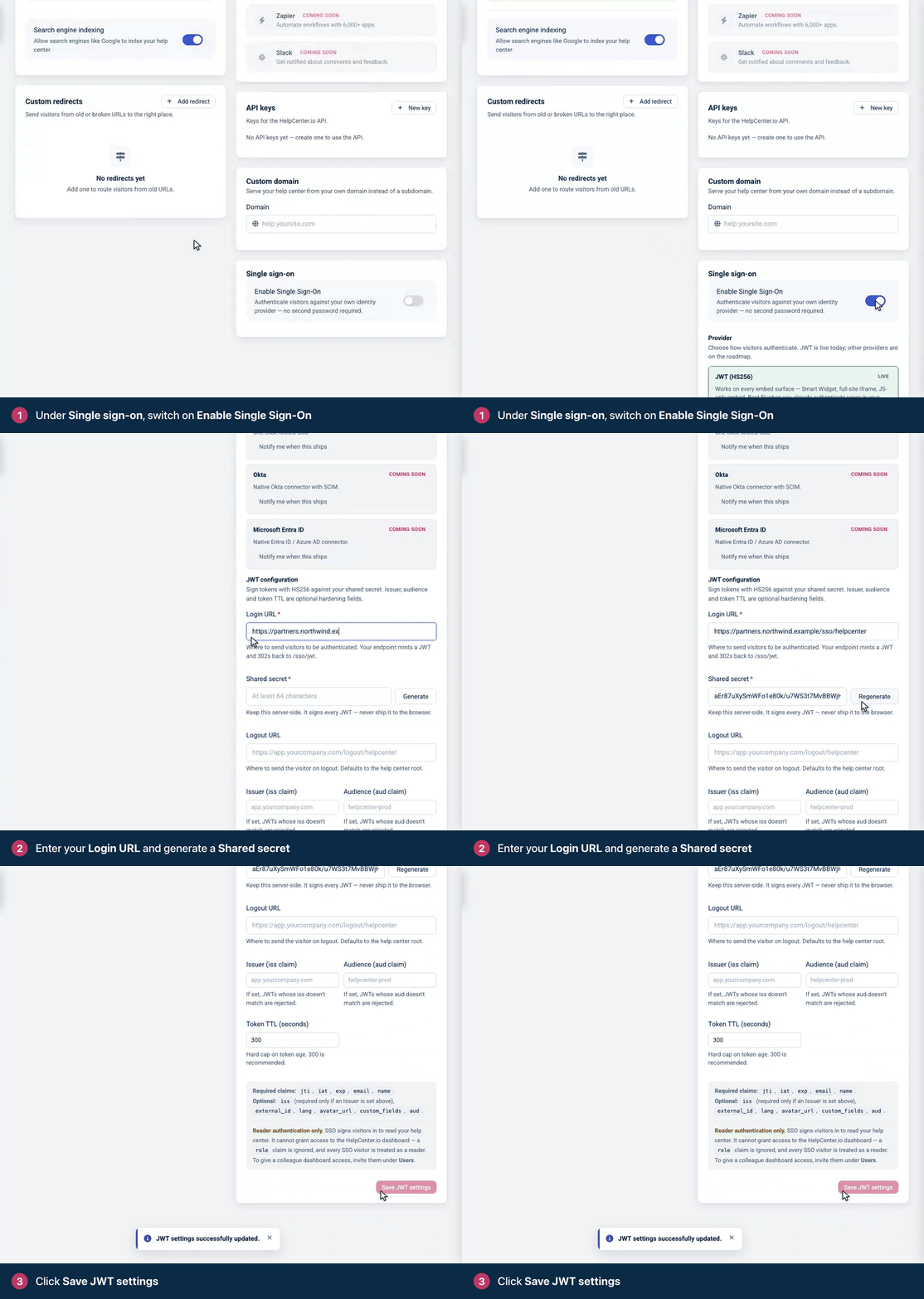
What each setting means for your code:
Setting | What it means for your code |
|---|---|
Login URL | Required. The address HelpCenter.io sends readers to. HelpCenter.io adds |
Shared secret | Required, at least 64 characters. Your server signs with this exact string. A generated secret looks like base64, but don't decode it. |
Issuer (iss claim) | Optional. When set, every token needs an |
Audience (aud claim) | Optional. When set, every token needs an |
Token TTL (seconds) | Widget tokens only: the oldest token the widget accepts, counted from |
Logout URL | Saved but not used. |
Security notes
Keep the secret on your server. Anyone who has it can sign in as any reader, because the token's
emailandexternal_idare the reader's identity. Never put it in browser code.Write your help center's address into your code. Never build the redirect from the
subdomainparameter, or a crafted link could send a valid token to another site.Keep
expshort. 300 seconds leaves plenty of time. Tokens for your help center and for iframes travel in URLs, which can end up in browser history and server logs. The widget passes its first token in the URL fragment, which browsers don't send to servers.Use a different secret for each help center. A token is accepted by every help center that uses the secret it was signed with, unless their Audience settings tell them apart.
Rotate with care. A help center has one secret at a time. A new secret takes effect as soon as you save it: tokens signed with the old one fail from then on, and readers who are already signed in stay signed in. See Can I rotate the SSO shared secret without downtime?
Keep your clock in sync. HelpCenter.io allows 30 seconds of difference on
iat,nbfandexp. Use NTP on the servers that sign tokens.